


Joe Maring / Android Authority
How would you grade Google’s Android 16 QPR3 update?
132 votes
Give At a Glance more power, or remove it completely
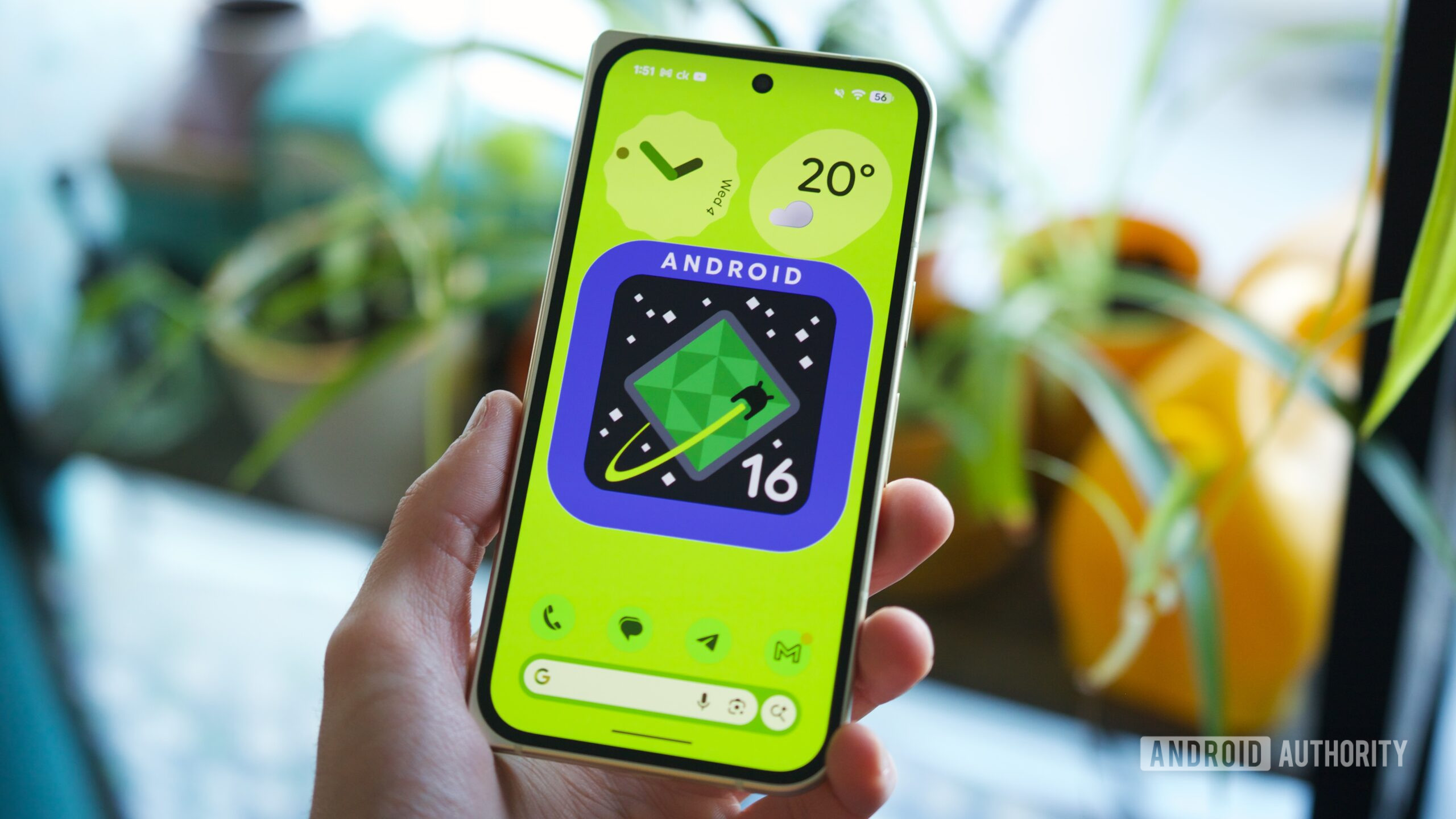
There is a slew of changes coming to the Pixel Launcher and its widgets with this update, most of them center around my beloved At a Glance widget.
For you heretics out there, you can finally completely remove At a Glance from your home screen. I don’t know why you would do that to the most useful widget on Android, but the option is there. Tap and hold on the At a Glance widget, choose Settings, then toggle off Show on home screen. Poof, gone. If you want to get it back, tap and hold anywhere on your home screen, choose Home settings, then tap the gear icon next to At a Glance and turn it back on.
Another change lets you add a grey background to the widget. The option is in the same menu, under High contrast background. This can be very useful on lighter wallpapers where the widget’s white font is practically illegible.
And finally, At a Glance is finally adding some extra data points with sports scores, end-of-day stock details, and commute updates. All categories should be enabled by default, but if you want to make sure, tap and hold once again on At a Glance, choose Settings, and toggle on Sports, Finance, and Commute.
These might take a few days before they start showing up, but once they do, they’ll be extremely helpful. I’ve been getting sports scores for FC Barcelona and Real Madrid’s games for the past few days, and I don’t imagine I’ll ever go back to using any other widget, floating score, or notification. I love how contextual these scores are — they pop up one hour before the game and stay for a bit after it’s over, and they appear on the lock screen and always-on display, too.
Try Google’s funky new AI-generated custom app icons
Android 16 QPR2 made it possible to force-theme all of your apps’ home screen icons, bypassing any lazy-developer unthemed icons. With QPR3, Google is taking this to the next level by letting you generate completely new icon themes using AI and a bunch of preset commands.
To start the process, go to tap and hold somewhere on your home screen and choose Wallpaper & style > Icons, and look for the new Create icon. It opens up a Custom icons page where you can choose from five different styles: Scribbles, Cookies, Easel, Treasure, and Stardust.
Cookies and Stardust are preset, but the other three let you change the iconset’s theme or color, matching your wallpaper or creating contrast. Once you pick one, tap Create icons, wait a bit, then Download. Google’s algorithms will run in the background, find all of your home screen apps, and make a new icon for them. Once the icon pack is done, you’ll get a notification, and it’ll appear under Your styles.
You can download and apply it. The best part is that this applies to any icon — even your most local, unknown apps and services — as well as app shortcut icons, too. Plus, any app you later add to your home screen will be immediately themed, too. I love this, and I’m sure I’ll spend a few hours testing different styles to find the one that works for my current wallpaper.
Customize your Google Search bar
On the opposite side of At a Glance, there’s the Google Search widget at the bottom of the home screen, and this one is getting some new features too. It’s now as customizable as the standalone Google widget, meaning you can change its theme, adjust its transparency, and pick the shortcuts that show up on the right side or hide them completely.
To do this, tap and hold on the widget and choose Widget settings. From here, you can choose between the automatic system theme (which follows the Material color you chose) or assign a permanent light, dark, or custom theme with any color you want. Go crazy if you want. Adjust the transparency of the widget if you want, and tap Add shortcut to choose the quick shortcuts you want to show up there. My favorites are Translate and Sports, but Song Search is also quite handy.
In addition, you can also change the default search engine used by the widget if you don’t want to go through Google. Tap and hold on the widget, choose Search settings, and then Search engine. I only see Google and DuckDuckGo as options for now, so I hope Google adds more providers later, or allows us to set our own.
Try the new display Comfort Filters
Pixels already offer a Night Light mode to make their display easy on the eyes at night, but the option was always hidden under a Quick Settings toggle that very few people knew about. Now, there’s an entire menu dedicated to night-time viewing.
Go to Settings > Display & touch > Comfort filters to find the two new adjustable filters. Comfort View tones down blue light and doesn’t seem to affect other colors (pink, yellow, red, etc.). Its intensity can be manually adjusted, or you can let your phone automatically adjust based on your environment.
Night Light affects the entire display. It dims it a bit and switches it to warmer tones throughout while reducing some of the blue light’s effect. Here again, you can control the intensity as well as assign a specific schedule from sunset to sunrise or between specific hours.
Control the brightness of your flashlight
For years now, we’ve known that Android can modulate the brightness of the LED flashlight on many phones, but you had to get a third-party app or Google’s Magnifier to do it on Pixels. With Android 16 QPR3, that’s no longer the case. The function is built straight in, but you need to know how to trigger it.
Instead of simply tapping to turn on the flashlight, you have to tap and hold on the Quick Settings toggle. A Flashlight Strength pop-up will appear, and you can slide your hand up/down to dim or brighten it. Tap Done or anywhere outside the pop-up to go back and keep the flashlight on, or tap Turn off to, well, turn it off.
Enable the new Satellite hub
Recent Pixel phones offer Satellite connectivity in bad-network areas, allowing you to reach emergency services or send messages under duress. The option enables itself automatically when your phone doesn’t detect any network, but if you want to control it yourself, you’ll have to go through several different menus to find every satellite-related option. Now, there’s a central hub for all Satellite things, except it’s a bit hidden.
To show the hub, you need to have Developer options enabled on your Pixel (go to Settings > About phone and tap on the Build Number several times). When they’re enabled, go to Settings > System > Developer options and look for Quick settings developer tiles. Turn on the Satellite tile.
Now, if you drop down your notifications panel, you’ll see that a new Satellite tile has been added at the top; feel free to move it around. Tapping it opens the new Satellite connectivity page, which shows all the apps that use the feature (Emergency SOS calls, messages, Find Hub, and Maps) as well as a Settings button. The entire page is still a bit buggy; you may need a few taps to open it, and the settings shortcut isn’t working for me now. I hope Google finishes work on it and rolls it out widely and publicly soon, without having to go through Developer options to trigger it.
Invert your 3-button navigation (if you must)
I’ve been using Pixels for eight years, so for me, the correct order has always been the Back button on the right and the Recents button on the left. I’ve long ago switched to gesture navigation, but when I switched my parents to Pixels, I set them up with button navigation because it’s more accessible and reliable for them. They were coming from old OnePlus and Samsung phones, though, which had Back and Recents flipped around, so they had to get used to the new button positions for a few days.
If you or your family members prefer the inverted placement, you can now do that on your Pixel, too. Go to Settings > Display & touch > Navigation mode and tap the settings cog next to 3-button navigation. You’ll be able to choose between the two Back/Recents positions depending on your preference.
Don’t want to miss the best from Android Authority?


Thank you for being part of our community. Read our Comment Policy before posting.

